Tracking the console
Spotlight Maestro follows the production's lighting console by listening to the console's own show control output. This chapter covers selecting the console type, the configuration required on the console and in the application for each supported console, the tracking behaviour common to all of them, and the diagnostic tools.
Supported consoles:
| Console | Protocol | Connection |
|---|---|---|
| ETC Eos family (Eos Ti, Gio, Ion, Element, Apex, ETCnomad) | OSC | Network, TCP or UDP |
| grandMA2 and dot2 (including onPC) | MIDI Show Control over Ethernet | Network, UDP |
| grandMA3 (including onPC) | OSC | Network, UDP |
Selecting the console
All console configuration is in Settings, Console Sync. This is the only settings tab that holds its changes until Save & Restart Listener is pressed, because applying them stops and restarts the connection.
Select the console type from the Console dropdown: ETC Eos family (OSC), grandMA2 / dot2 (MIDI Show Control), or grandMA3 (OSC). The configuration fields below the dropdown change to match, and the selection renames the console cue column and badges throughout the application: EOS CUE on an Eos production, MA CUE on a grandMA production.
Exactly one listener runs at a time. Changing the console type stops the previous listener before starting the new one.
ETC Eos
On the console
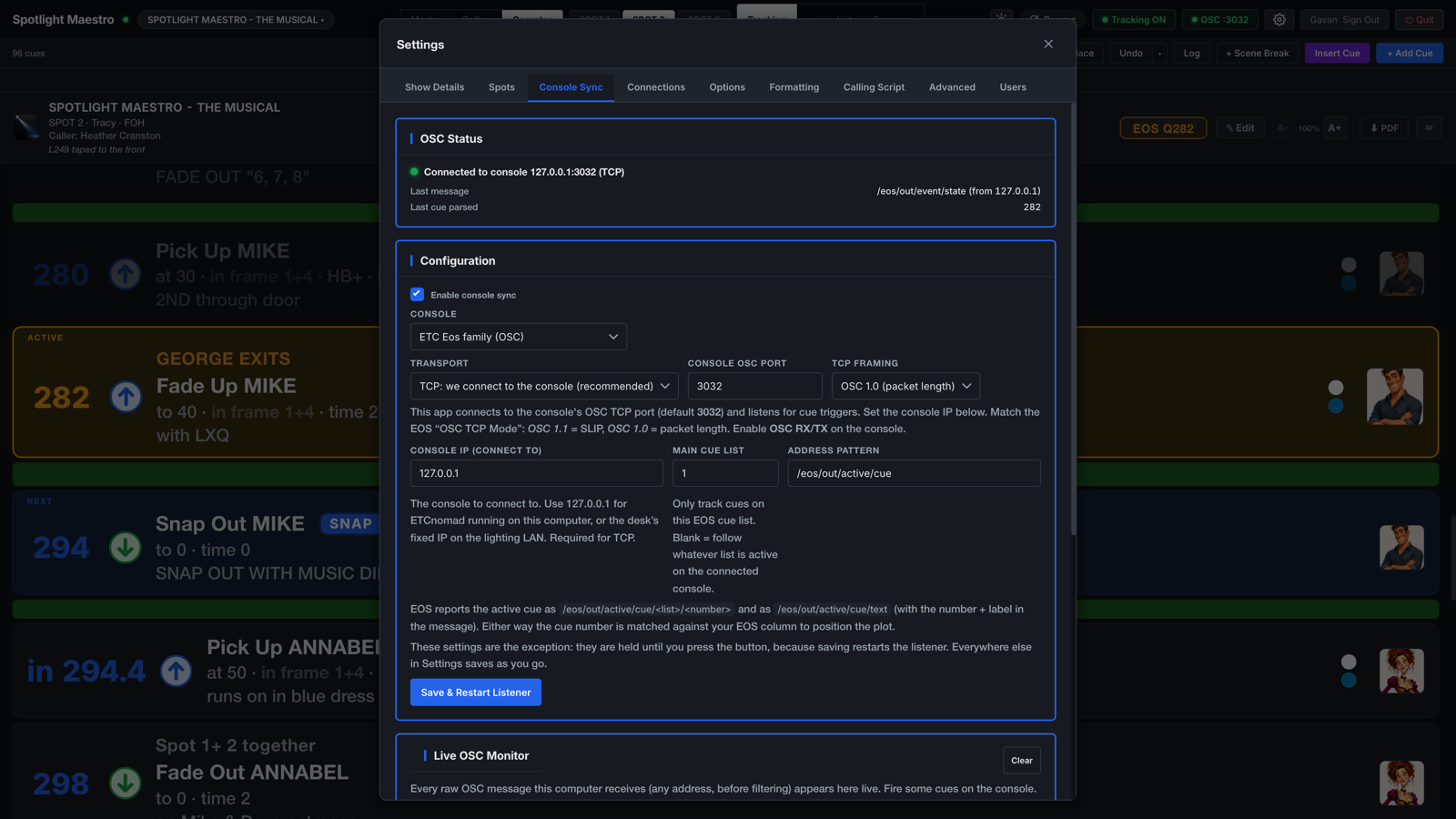
Setup, System, Show Control: enable OSC RX and OSC TX. For a TCP connection, note the console's OSC TCP mode (version 1.0 or 1.1); the application must be set to match.
In the application
- Enable the listener.
- Choose the Transport. TCP is recommended: the application connects to the console and subscribes to its output, which requires no transmit configuration on the console. UDP is available where the console is configured to transmit to the application instead.
- For TCP: enter the Console IP and the Console OSC Port, normally 3032, and set the TCP framing to match the console's OSC TCP mode: OSC 1.1 uses SLIP framing, OSC 1.0 uses a packet length header. For ETCnomad running on the host machine itself, the console address is 127.0.0.1.
- For UDP: set the Listen Port, and on the console set OSC UDP TX to the host machine's address and that port. The Main Console IP field acts as a source filter: blank accepts any sender; on a multi-console system, set it to the main console's address so a backup console is ignored.
- Set the Main cue list if the production runs from a single cue list. The application then tracks that list only. Blank tracks every list.
- Press Save & Restart Listener.
On a multi-console system there is no automatic changeover: the application follows the configured address and cue list. If the production moves to the backup console, update the Console IP.
grandMA2 and dot2
grandMA2 transmits MIDI Show Control over Ethernet in MA's own UDP encapsulation, which the application receives directly. No MIDI hardware is involved.
On the console
Setup, Console, MIDI Show Control. On the MSC Out row set:
- Mode: Ethernet
- Exec: Exec.Page
- Command Format: All
- Port: to match the port configured in the application (default 6004)
The Exec setting matters: with Default Only, the console omits the executor field entirely and cues from different executors cannot be distinguished.
In the application
- Select grandMA2 / dot2 (MIDI Show Control).
- Set the UDP Port to match the console's MSC Out port. The default is 6004.
- Optionally set the Device ID (0 to 111). Blank accepts every device ID, including broadcasts.
- Optionally set the Executor (cue list) filter, written as executor.page, for example 1.1. A bare executor number such as 1 matches that executor on any page. Blank follows every executor.
- Press Save & Restart Listener.
The application acts on GO and TIMED GO commands. STOP, RESUME and GO OFF appear in the live monitor but do not move the plot.
grandMA3
grandMA3 does not transmit MIDI Show Control over Ethernet in any released version, so the application follows the console's OSC output instead. Sequence playback events are transmitted per sequence and carry the cue number.
On the console
Menu, In & Out, OSC:
- Add an OSC line with the host machine's IP address and the port configured in the application (default 8000), Mode UDP, and Send set to Yes.
- Switch on Enable Output at the top of the page.
In the application
- Select grandMA3 (OSC).
- Set the UDP Port to match the console's OSC line. The default is 8000.
- Optionally set the Sequence (cue list) filter to a sequence number. The match is exact. Blank follows every sequence.
- Press Save & Restart Listener.
The application acts on the playback functions Go+, Goto, Top, Load and On. Off carries no cue number and is ignored, as are fader and flash messages.
Note: grandMA3 transmits the sequence name, cue number and cue name as one combined text field. A sequence name that ends in a bare number can be misread as the cue number. Name tracked sequences without trailing numbers.
Tracking behaviour
The following behaviour is identical for every console type.
Cue references are free text. The console cue column in the plot accepts any text: 287, LX42.5, w/ 18, in 294.4. The application extracts the number for matching, so no fixed format is required.
Resolution. An incoming cue is matched exactly where an exact match exists. Where the console fires a cue with no corresponding spot cue, the plot holds on the last spot cue at or before it, so every operator sees the instruction currently in force. A cue before the first referenced cue places every view at the top of its sheet.
Per-spot resolution. Operator layouts resolve to the last cue for that spot at or before the live cue, so an operator between cues sees the instruction they are holding.
Tracking is a per-device state. Each device's toolbar control cycles through Tracking ON, Follow (this device drives every screen; chapter 5) and Tracking OFF. One device leaving tracking does not affect any other.
Manual control is temporary. Selecting a cue by hand places that device in manual control, indicated by a MANUAL badge. The next console cue restores automatic tracking.
Editing is protected. An incoming console cue does not move a view in which a cell is being edited; scrolling resumes shortly after the edit.
Follow: one device drives every screen
Follow hands the whole venue to one person. With Follow active, stepping the show on the driving device, from the Master plot or the Calling script, moves every connected screen with it: every operator's sheet, every monitor, everything. The console is set aside for as long as Follow runs; the show goes where the driver goes.
Follow is the third state of the toolbar tracking control, which cycles Tracking ON, Follow and Tracking OFF. It is available to Admin, Author and Touring Operator accounts, on screen or from a Stream Deck key (chapter 9).
What Follow is for
- Rehearsal calls. The caller steps the script line by line at the rehearsal's own pace, and every operator's sheet moves in step. Jumping back to repeat a section carries the whole venue back with it.
- Working spots without the console. Spot cues can be rehearsed on their own, ahead of the console programming or in a different order. The plot is driven entirely from the caller's device; no console is needed.
- A show with no console feed. On a production where no console connection is possible, Follow is the performance mode: the caller steps the show and the operators track it exactly as they would a console.
- The Touring Call. A Touring Operator can hold Follow from the My Call layout, stepping the other operators' sheets while operating their own spot. See The Touring Call in the Calling the show chapter.
One driver at a time
Follow is held by one account at a time, and the toolbar of every device names the account driving.
- Taking Follow while another account holds it is refused, and the application states who is driving. Two devices can never silently share control of the venue.
- Ending Follow is open to any author-level account, whoever holds it. A venue can never be stuck in Follow behind an absent driver. The Admin account can also take Follow over directly.
- If the driver's device disappears, a closed laptop or a flat battery, Follow ends on its own rather than leaving every screen following a device that is no longer there.
Leaving Follow
Ending Follow does not snap the venue back to the console. Every sheet holds where the driver left it, and nothing moves until the console fires its next cue. This is deliberate: the console may be parked on a cue from a different act entirely, and a venue mid-rehearsal must not be dragged there. To return to the console immediately instead, use Resync, which ends Follow and brings every device to the console's current cue.
Diagnostics
The status indicator. The toolbar indicator distinguishes three states: listener off, connected and receiving, and connected but receiving nothing. On TCP it also goes red the moment the console closes the link, for example when Nomad is quit, and green again with the first message after it reconnects. On UDP there is no link to watch, so a console that has gone away looks the same as one that is idle. The status card in Settings, Console Sync shows the transport, address and port in use, the last message received and its source, the last cue parsed, and the last message ignored.
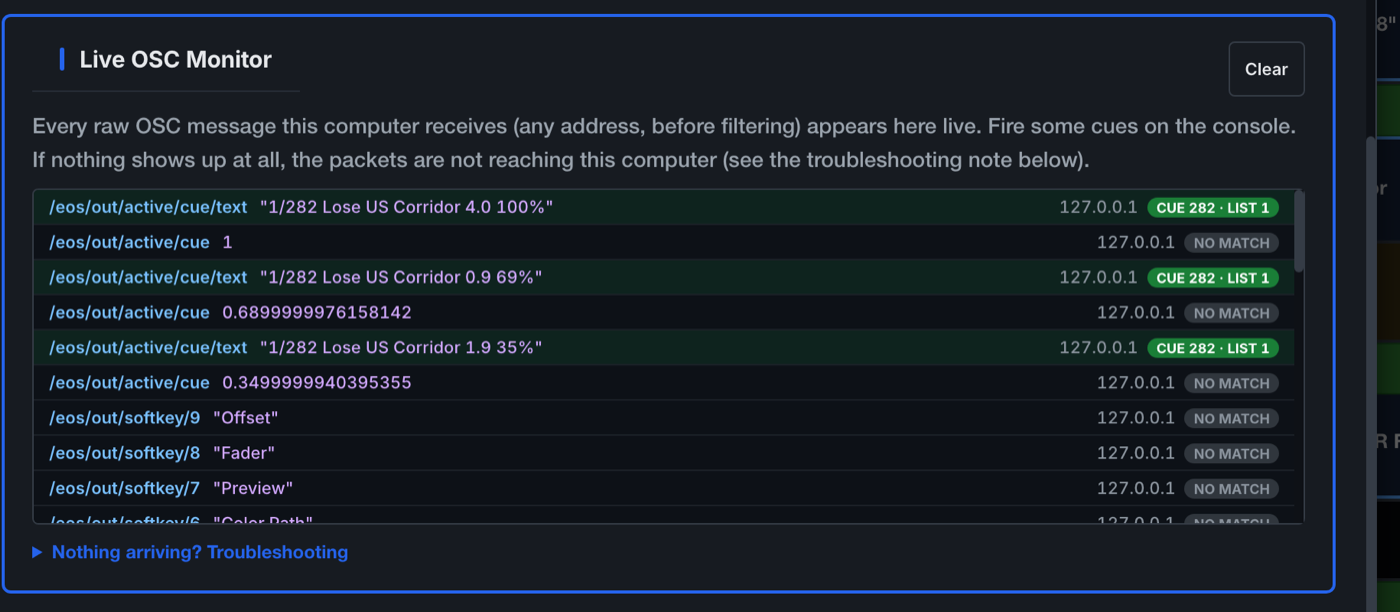
The live monitor. Settings, Console Sync displays the last sixty messages received, before any filtering, each tagged matched, filtered, skipped or no match. This identifies immediately whether the console's output is arriving, and whether a filter is discarding it.
The cuelist warning. If cues arrive but every one is on a cuelist, executor or sequence the application is not tracking, the toolbar reports the mismatch in words rather than remaining silent.
Send Test Cue. Settings, Console Sync can inject a cue number as though the console had fired it. The plot must resolve it from the cue references written in the show, which verifies the plot's numbering with no console connected. This works identically for every console type.
Connection checklist
If the status indicator shows the listener receiving nothing:
- Console type. Confirm the selected console matches the console in use.
- Ports. The port must match at both ends: Eos TCP 3032 by convention, grandMA2 MSC Out port, grandMA3 OSC line port.
- Eos TCP framing. A framing mismatch produces a connection that receives nothing usable. Match the console's OSC TCP mode.
- Transmit configuration. For every UDP path, the console must be configured to transmit to the host machine's address: Eos OSC UDP TX, grandMA2 MSC Out in Ethernet mode, grandMA3 OSC line with Send enabled and Enable Output on.
- Filters. A Device ID, executor, sequence, cue list or source address filter that does not match the console silently discards everything. The live monitor labels discarded messages.
- Firewall. The host machine's firewall must allow incoming connections for the application.
- grandMA2 Exec mode. Set Exec to Exec.Page on the console; Default Only omits the executor field.
If the plot moves but resolves to wrong cues, the cue references in the plot do not match the console: use Send Test Cue to locate the mismatches.
The network at a glance
The two schematics below show a representative installation for each console family: the console and the host computer in the control room, the followspot caller's production desk, the lighting designer's production desk and the followspot operators in the booth. Solid blue lines are wired network connections, dashed blue lines are wifi, grey lines carry video and the dotted amber line is USB.