Setting up
This chapter covers installation on the host machine, opening the licence, connecting devices, and moving a production between machines.
Requirements
- Host machine: a Mac running macOS 11 or later (Apple silicon or Intel), or a PC running Windows 11. One host per production.
- Licence file: the
.smfile issued at purchase, or the free demo licence. - Network: any network shared by the host and the devices. Fixed addresses are supported; no internet connection is required at any point.
- Devices: any current web browser on iPad, Mac, Windows, Android or another platform.
Installing on macOS
- Open the downloaded disk image and drag Spotlight Maestro to Applications.
- Open the application. Its icon appears in the menu bar, and the application opens in the default browser.
The application is signed and notarised. It installs nothing else on the machine. Show data is stored in the user Library, outside the application bundle, so replacing the application with a newer version does not affect any show.
Installing on Windows
- Run the downloaded Spotlight Maestro Setup file. The installer is signed, so Windows opens it without a warning. It installs for the current user; no administrator password is needed. Leave the location as offered unless there is a reason to change it.
- Open Spotlight Maestro from the Start menu, or leave the box ticked so the installer starts it. Its icon appears in the notification area near the clock, and the application opens in the default browser.
Everything the application needs is inside the install; no other software is required. If Windows Firewall asks whether to allow the application network access, allow it on private networks. Show data is stored in the Windows user profile, not in the application folder, so installing a newer version over the old one does not affect any show. To remove the application, use Installed apps in Windows Settings; show data is kept.
A newer version is installed by running its Setup file; a running copy is closed and replaced.
The icon in the notification area provides the same controls as the macOS menu bar icon: open in browser, the connection addresses for other devices, Back Up Show, Restore Show, the Stream Deck files, the log, and Quit.
Opening the licence
Until a licence is opened, the application is locked: no show opens and sign-in is refused. The locked screen offers Open Licence.
- Store the
.smlicence file with the production's other files. Any location on the machine is acceptable. - Double click the licence file, or use Open Licence on the locked screen and select it.
Once a licence is open, the sign-in screen names the production it belongs to. On the host machine the sign-in screen also offers Change licence, which opens another production's licence in place: its show opens, the console connection and the video feed restart for it, and every connected device returns to the sign-in screen of the new production. Devices on the network cannot change the licence.
- The production appears, named on the sign-in screen as licensed.
The licence defines the show title, venue, followspot count and administrator account; these cannot be changed in the application. The application remembers the last licence opened, so this is a first-run step. Keep a copy of the licence file with the production's backups.
Signing in
Sign in with the administrator account created at purchase, or with demo / demo on the demo licence. Create accounts for the rest of the team in Settings, Users; chapter 7 describes the roles.
Connecting devices
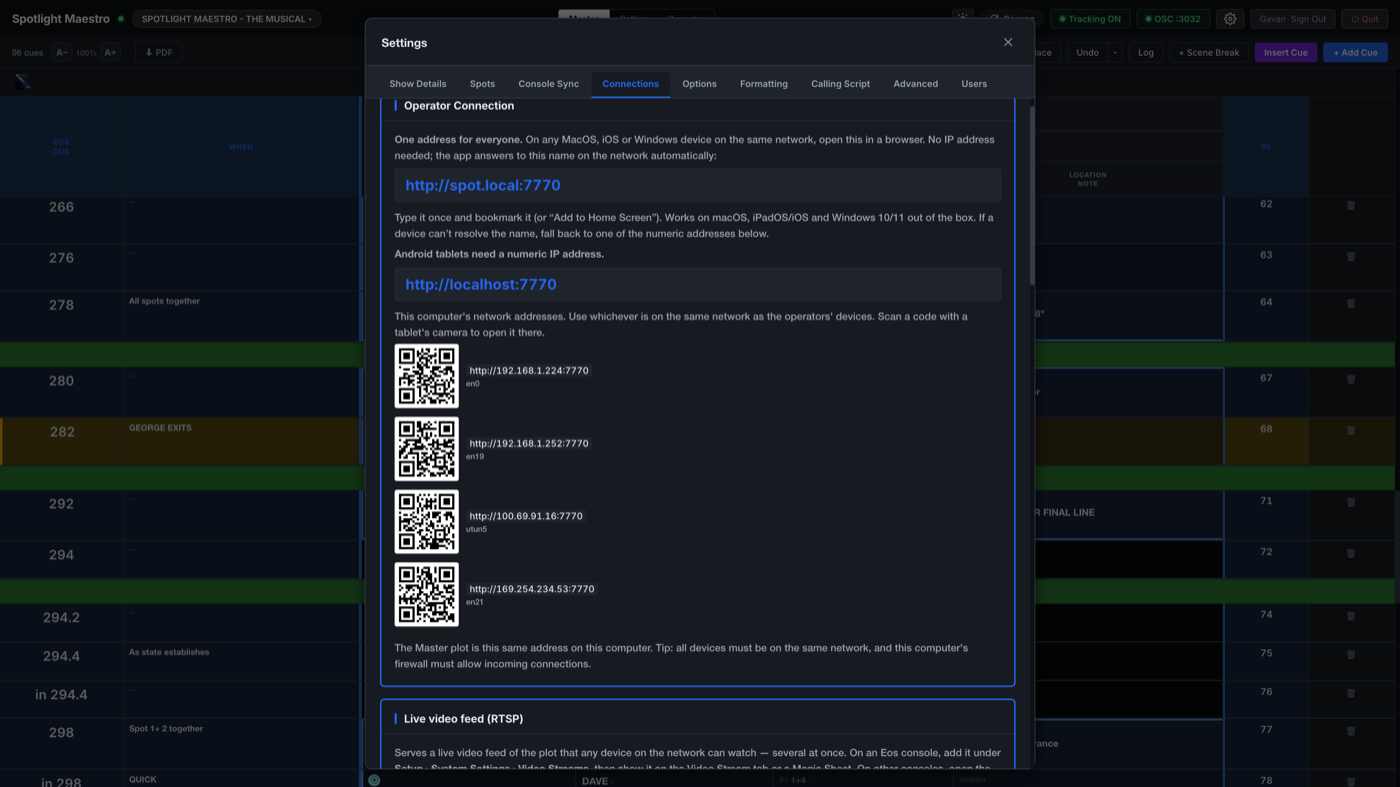
Every device on the production network reaches the application at one address:
- Mac and iPad:
http://spot.local:7770 - Windows:
http://spot:7770 - Android: the numeric address. Settings, Connections lists every address the host answers on, each with a QR code.
Each person signs in and selects their spot. The device retains the account, the selected spot and the chosen layout.
If a device cannot reach the application:
- Confirm the device is on the same network as the host.
- Use the numeric address from Settings, Connections.
- If the host's firewall is enabled, allow incoming connections for the application.
Setting up the operators' tablets
A tablet that can do nothing except run its operator view is a reliable one. Best practice for show tablets:
- Know only the show's Wi-Fi. Delete every other network from the tablet's Wi-Fi settings so it cannot wander onto a venue or guest network mid-show, and remove any mobile SIM card (or keep cellular data off). With no other route available, the tablet has nowhere to go but the show network.
- Set the main console's IP address as the DNS server in the tablet's network settings for the show Wi-Fi. The tablet then never looks beyond the show network for anything: it connects to the show's Wi-Fi and listens only to the console network.
- Mains power, always. Every tablet on charge for the whole performance, not running on its battery.
- Stop the screen sleeping. Set the display sleep and auto-lock so the screen stays awake for at least four hours, longer than any act, so no tablet dims or locks mid-performance. On an iPad: Settings, Display & Brightness, Auto-Lock, Never, which is safe on mains power.
- Give the spot booth real signal. A Wi-Fi access point in the booth itself is ideal. It is not essential, provided the show Wi-Fi is strong where the operators sit; a weak signal shows up as operator views lagging behind the console.
The network port
The application serves on port 7770 by default. An administrator can change the port in Settings, Connections (1024 to 65535); the change applies at the next start, and every device then includes the new port in the address.
Moving a production between machines
A production is commonly built on one machine and performed from another. The procedure:
- On the first machine: Back Up Show (Settings, Connections, or the application icon's menu). This writes the entire production to a single file.
- Transfer the file to the second machine.
- On the second machine: open the same licence file, then Restore Show and select the backup.
Backups exclude machine-specific settings: the network port, the console connection and the video feed describe a particular computer and are reviewed in Settings after a move. Chapter 8 covers backup and restore in detail.
One host per network
Run one host machine per production network; every other machine connects through a browser. If two copies of the application are running on the same network, each announces itself and every connected device displays a warning, because a device may otherwise connect to the wrong machine and read a different copy of the show. Quit the copy that should not be serving.