Operating a followspot
This chapter is for the followspot operator. It covers signing in, the three operator layouts, manual advance, and expected behaviour when the network is interrupted.
Signing in
- Open the production's address in the device's browser:
http://spot.local:7770on iPad or Mac,http://spot:7770on Windows, or the numeric address or QR code from Settings, Connections on Android. - Sign in with your account. If a spot is assigned to the account, that spot's sheet opens automatically; otherwise select a spot from the toolbar.
- Operator sessions persist for up to 30 days. Bookmark the address; the device returns directly to your sheet.
The device remembers the selected spot, the chosen layout and the text size. The Tracking layout style (below) is saved on the account instead, and follows the operator between devices.
The three layouts
The toolbar switches between three layouts. Each shows only the selected spot's cues, with every scene break in place.
Tracking
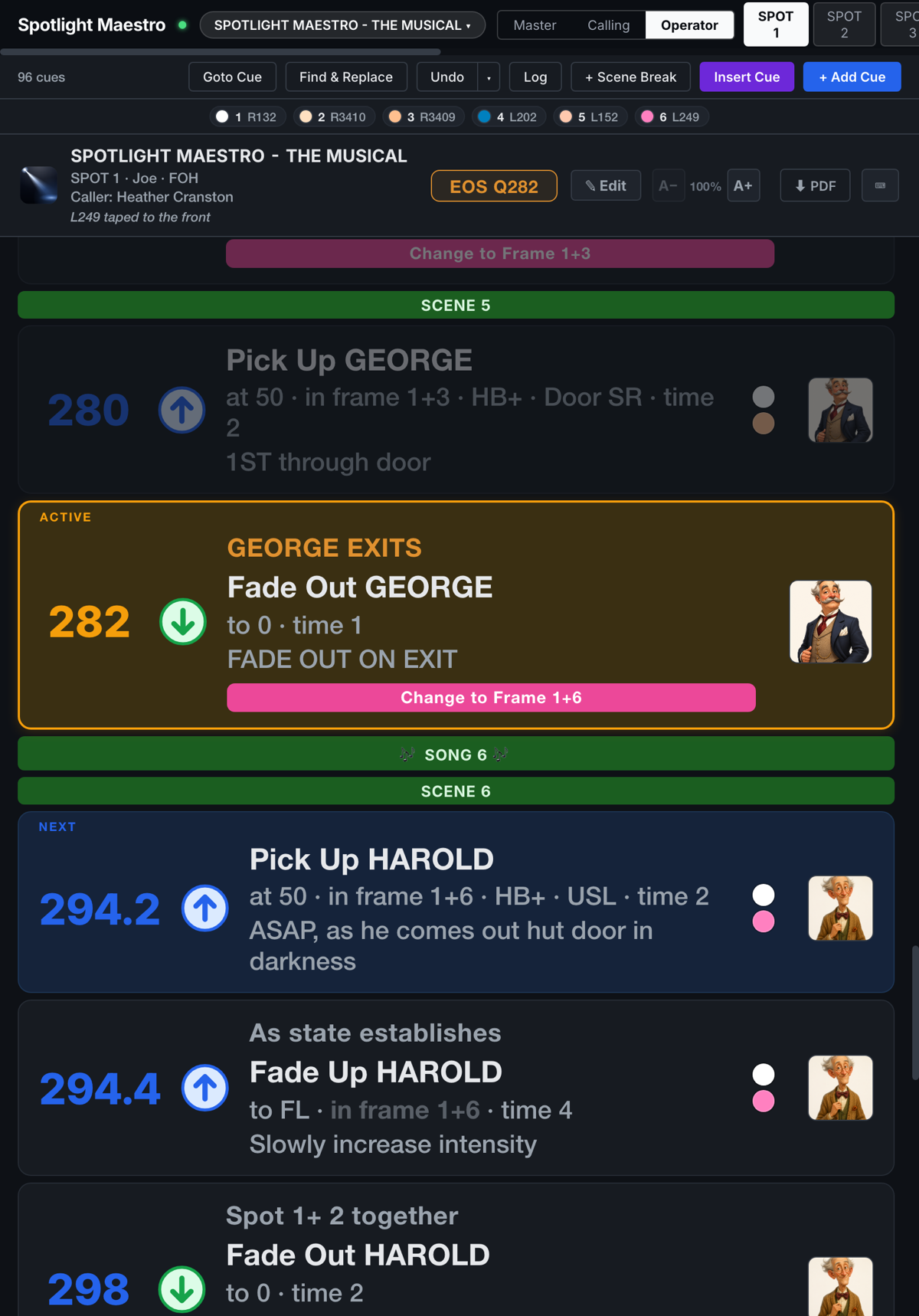
The performance layout, designed for portrait orientation. One card per cue, scrolling with the console. The active cue is marked and held high on the screen; the next cue is highlighted.
Each card contains the complete instruction: the console cue reference, the action and its graphic, the character with photograph, the intensity, frame, size, location and time. Gel colours are rendered as coloured dots from the gel database. SNAP and HARD EDGE badges appear where they apply. Cues consisting only of a note, without a console cue reference, give the note additional prominence.
- Manual advance by touch, keyboard or Bluetooth footswitch. Touch a card to select it, or use the keys: space, the arrow keys, page up and down, enter and backspace step the sheet, and every key can be remapped from the keyboard panel in the toolbar. A Bluetooth footswitch that presents as a keyboard works without further configuration.
- Manual control is temporary. Advancing by hand displays a MANUAL badge; the next console cue restores automatic tracking.
- Text size adjusts from 100% to 160% and only scales upward from the designed baseline.
Tracking layout styles
The small arrow on the Tracking toolbar button opens a choice of three card styles. The choice is saved on the account, not the device, so it follows the operator to whichever screen they sign in on.
- Default. The full card as described above, with the intensity in the detail line.
- Large Action. The intensity moves up into the headline, beside the action and character, at headline size. For operators who read the level first.
- Action Intensity. The action graphic and the level the cue ends on share one tinted block, coloured by direction: blue rising, green falling, purple unchanged. A cue ending at 0 reads OUT; a cue ending at full reads FULL.
List
The traditional cue sheet, designed for landscape orientation. The same cues as a compact table: SQ, console cue, trigger, action and intensity, character, frame, size and time, location and notes. The layout opens at 130% text size for legibility at a distance.
Accounts with edit permissions can edit any cell of this table in place; see Edit mode below.
Summary
The production's reference sheet, identical for every operator: the followspots and their operators, the colour loads frame by frame with gel swatches and names, the size abbreviations and their meanings, the cast with photographs and descriptions, and the scenes with their cue numbers. It has its own PDF button.
The scene list shows each scene's type once the production uses more than one, and can be shown In order or By type, grouped under a heading per type. Tick Spot usage to add a line under each scene, "Spot 1 has 7 cues, Spot 2 has 3 cues, Spot 3 has no cues", and a list under the table of the scenes each spot has no cues in. A heading with nothing of its own beneath it, an act title sitting directly above the first scene for example, gets no line. A scene break whose type is named Act in Settings, Options, Scene break types counts the whole act instead: every spot's cues from that break to the next Act break, however many scenes lie between. Both choices are remembered per device, and the PDF follows whatever is on screen.
Light and dark themes
Every layout is available in a dark and a light theme. The theme control in the toolbar sets the theme for the current device only.
Edit mode
Accounts with the Operator (can edit) role or above have an Edit control on the Tracking layout. It is off by default. When enabled, selecting a card opens an editing panel with the cue's action, intensity, character, frame, size, time, edge, location and notes. Edits are written to the show immediately and appear on every other device. Undo is available.
When the caller drives the venue
In rehearsal, and on productions run without a console, the caller can drive every screen directly with Follow (chapter 5). While Follow is active the sheet moves with the caller rather than the console, and the toolbar names the account driving. Nothing changes for the operator: the active cue is marked and held high exactly as in console tracking.
Network interruptions
A device that loses its connection states so on the sheet. Reconnection is automatic, with no action required: a device that sleeps or drops off the network reconnects when able, requests the current console position, and returns to the live cue. If a device reports that it cannot reach the show for a sustained period, refer to chapter 10.
Printing a track
The PDF button on the Tracking and List layouts exports the selected spot's sheet: cue cards with photographs, or the compact table. The printed sheet is generated from the same plot data as the screen.