Show Details
Title, venue, credits, logo and the show date, plus the number of followspots, from one to twenty. The licence card, CSV import and export, and the Stream Deck downloads live here too.
 SPOTLIGHTMAESTRO
Options and users
Every show needs to have its own settings and users. Spotlight Maestro keeps its options where you can see them, saves them as you go, and assigns users and operators according to their roles.
Settings are saved as you go. Each field is written when you leave it.
Title, venue, credits, logo and the show date, plus the number of followspots, from one to twenty. The licence card, CSV import and export, and the Stream Deck downloads live here too.
Each spot's operator and position, the default colour frames with a per-spot override, the touring operator switch, remote control spot settings, the frost detail: internal frost with a default edge, or an external frost frame the app watches.
Pick Eos, grandMA2 or grandMA3, configure it, watch the live message monitor and fire the Send Test Cue tool. The one tab with a save button, because saving restarts the console listener.
The address every operator device uses, with a QR code per network address. The video feed to a console or device, the VOR overlay feeds, the network port, backups, the app log and support access.
How the app behaves. The cue entry style, pop-up or inline. Flag options: the word for an instant move, whether Hard Edge shows on every cue or only where the beam turns hard, and the words for losing the frost. Scene break types, each a colour and a name. The Page and When columns, and the intensity icons.
The show's vocabulary: actions, colour frame combinations, sizes with their meanings, characters with photos and descriptions, and action graphics. Reorder any list and every dropdown follows.
Per-user column formatting: your font, size, weight and colour for each column, on your view only. And the PDF page size per layout, from A5 to A2 plus the US sizes.
Which spots the script calls, how lines are built, and the lexicon that turns written shorthand into spoken words, with a live preview. A swing spot operator comes in, just call that spot's cues.
For big changes: move, copy or swap cues between spots, move a sequence of cues elsewhere in the show, and shift or set intensities across the plot. Every one dry-runs and reports first.
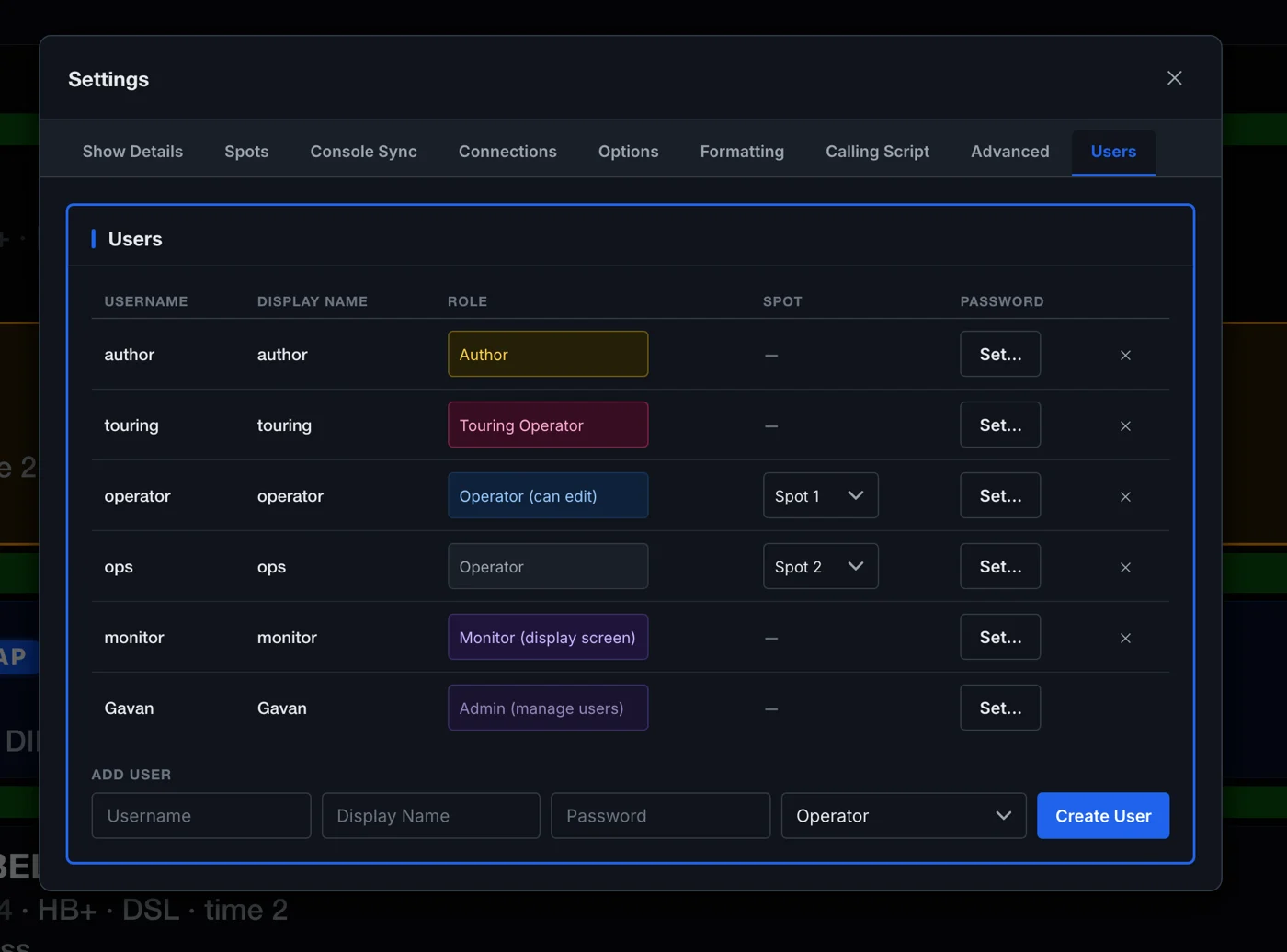
Admin only feature. Accounts, roles, passwords and assigned spots. An operator with an assigned spot signs in anywhere and their sheet is already open.
Everyone sees what they need. Only authorised users change what matters. Every change lands in the log with a name on it.
| Role | Made for | Can do |
|---|---|---|
| Admin | The person responsible for the production | Everything, including managing users and the network port. On a production licence this is the account that came with the licence, and there is only one. |
| Author | Designer, associate, assistant, caller | Build and edit the whole plot, run every tool and every export, configure the console connection. Access everything except the Users tab. |
| Touring Operator | The operator who travels with the show | Everything an Author can, plus a My Call layout: the calling script with their own spot left out, so they can call the others. |
| Operator (can edit) | Trusted operators who can make changes | Track, read and edit existing cues inline, with undo. Cannot create or delete cues, and cannot reach the tools that touch other spots. |
| Operator | Show crew | Read only. Track the show, choose their spot, set their text size, PDF their own sheets. |
| Monitor | A screen copy of the master layout | A read-only master plot that always follows the live cue. No editing, no settings. |
Passwords can never be read out of the app, not by an operator and not by us. They are scrambled before they are saved.
Restarting the app signs the editors out. The people who can change everything start each day at the login screen. Operators stay signed in for weeks: bookmark the operator login and they stay logged in.
A sign-in is good for one production only. A tablet still signed in to last week’s show gets the login screen, not today’s plot. Role changes bite immediately, and on the theatre network only the host machine can quit the app. No tablet in the building can stop the show, whatever it is signed in as.
CSV both ways, five print-ready PDFs, and a backup that is one complete file.